Eight live art styles, or bring your own
Pick a ready style in the studio, or upload any image in the look you want. The filter copies the style of the image, not the person in it.
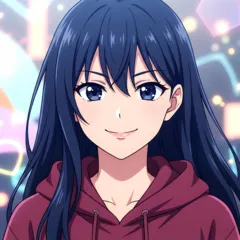
Anime

3D animation
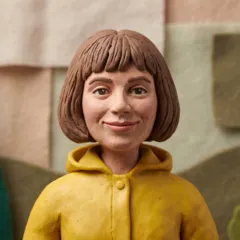
Claymation

Comic book

Cyberpunk neon

Oil painting

Pixel art

Zombie
How to use the anime filter on your webcam
- 1
Open the Restyle tab
In the live studio on the home page, switch from Face swap to Restyle.
- 2
Choose a style
Tap Anime, or any other style. To use your own look, upload an image drawn in that style.
- 3
Start your camera
Turn on your webcam and press Start. The anime version appears beside your real camera within a few seconds.
- 4
Stream or record it
Put the window in OBS as a Window Capture, or record a clip in the studio to post later.
The OBS guide shows the capture and crop step by step.
Anime filter or face swap?
Restyle changes the whole frame: you, your room and the light all turn into the style. Face swap keeps the real room and changes only your look to the person in a portrait. Try-on keeps you and changes only your outfit. All three use the same camera and cost the same per second, and you can switch between them without leaving the page.
Stream ideas for a live anime filter
- Open the stream in anime style, then switch back to your real camera for the main part.
- Let chat vote on the next style: anime, claymation or pixel art.
- Use the zombie style for a Halloween horror game night. See our Halloween looks.
- Record a short in 3D animation style for TikTok or YouTube Shorts.
What the anime filter costs
1 credit is 1 second, the same as face swap, counted only while the styled video is on screen. A 10 minute anime segment uses 600 credits. The Pro plan gives you 75 minutes a month for $22.99 a month billed every 3 months, and unused credits roll over a month. See all plans.